WhatsApp Business Web: The Complete Desktop Guide for 2026

Learn how to use WhatsApp Business on desktop. Setup guide, features, multi-device support, API integration, and tips for e-commerce teams using WhatsApp Web.
WhatsApp Business Web lets you manage customer conversations from your desktop browser — no phone needed. Whether you're handling support tickets, sending campaigns, or recovering abandoned carts, the desktop experience is essential for e-commerce teams.
This guide covers everything you need to know about WhatsApp Business Web in 2026: setup, features, limitations, and how to scale beyond the basic app with the WhatsApp Business API.
What Is WhatsApp Business Web?
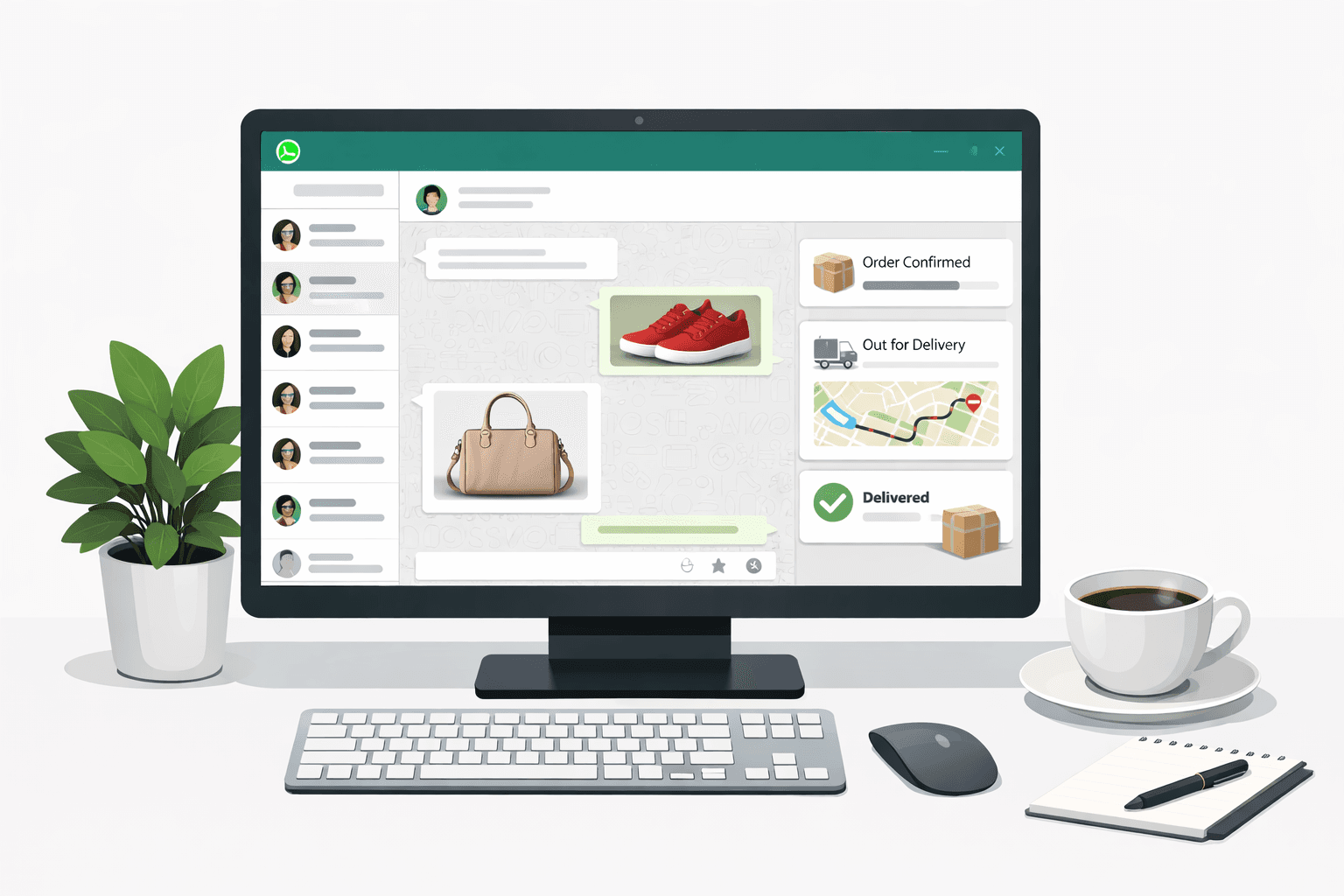
WhatsApp Business Web is the browser-based version of WhatsApp Business. It mirrors your mobile WhatsApp Business account on your desktop, giving you access to all your conversations, contacts, and business features through a web browser.
Key capabilities:
- Send and receive messages from your desktop
- Share files, images, and documents with customers
- Use quick replies and saved message templates
- Manage labels to organize conversations
- View business profile information
- Multi-device support — works even when your phone is offline
WhatsApp Business Web works at web.whatsapp.com or through the WhatsApp Business desktop app available for Windows and Mac.
How to Set Up WhatsApp Business Web
Step 1: Open WhatsApp Web
Visit web.whatsapp.com in Chrome, Firefox, Edge, or Safari. You'll see a QR code on screen.
Step 2: Scan the QR Code
- Open WhatsApp Business on your phone
- Tap Settings (or the three-dot menu on Android)
- Select Linked Devices
- Tap Link a Device
- Scan the QR code displayed on your browser
Step 3: Start Using WhatsApp Business Web
Once linked, all your conversations appear in the browser. You can now send messages, share media, and manage your business chats from your desktop.
Pro tip: You can link up to 4 devices simultaneously with WhatsApp Business multi-device support. This means multiple team members can access the same WhatsApp Business account from different computers.
WhatsApp Business Web Features
Quick Replies
Save frequently used messages as quick replies. Type / in the message field to access them. Essential for customer support teams handling common questions about shipping, returns, or product details.
Labels
Organize your conversations with color-coded labels:
- New Customer (green)
- Pending Payment (yellow)
- Order Shipped (blue)
- VIP Customer (purple)
Labels help you prioritize conversations and segment your audience for targeted campaigns.
Catalog
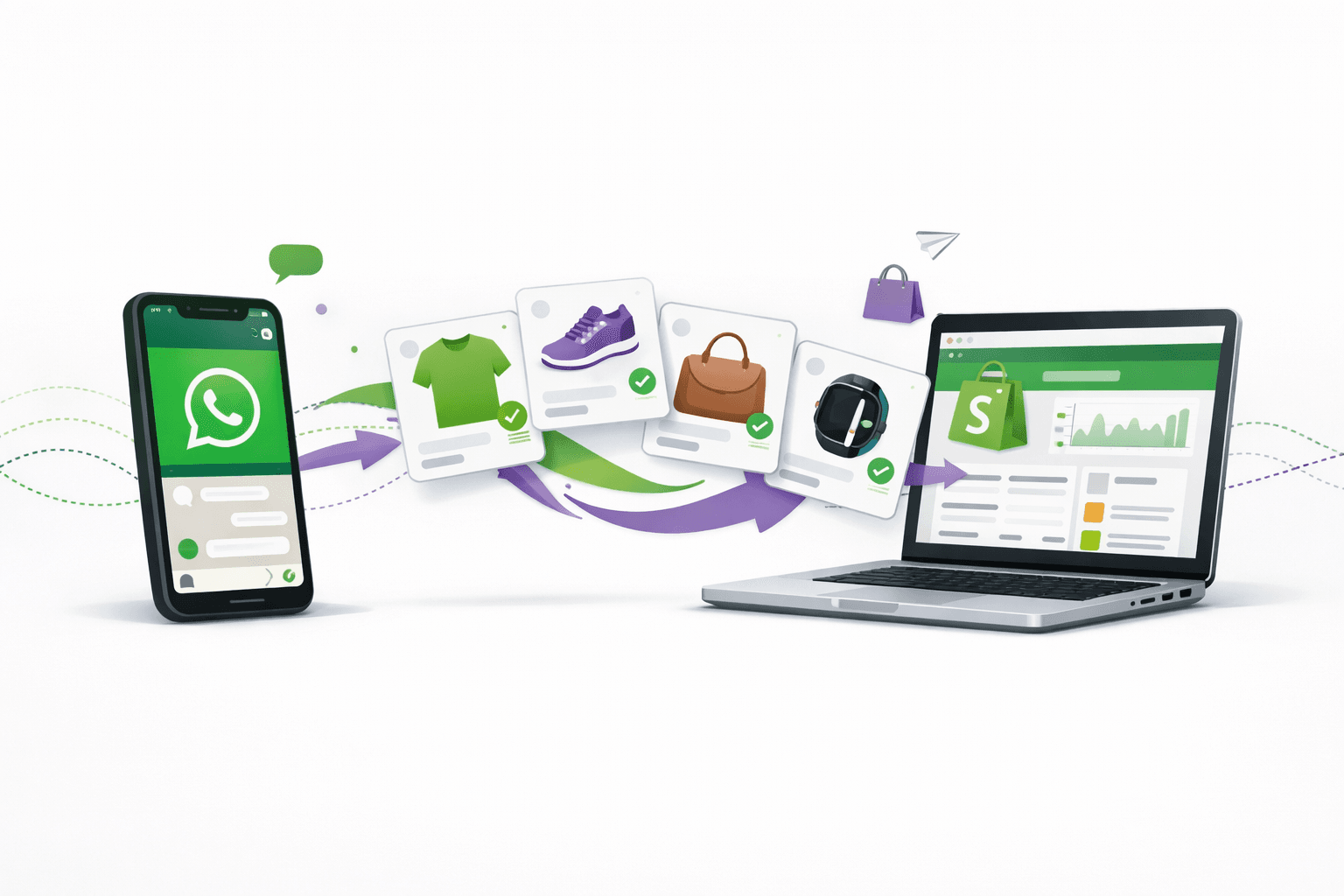
Display your products directly in WhatsApp. Customers can browse your catalog, ask questions, and place orders — all within the chat. This works seamlessly with your Shopify store integration.
Business Profile
Your business profile displays:
- Business name and description
- Address and business hours
- Website and email
- Category
A complete business profile builds trust and improves response rates.
WhatsApp Business Web vs WhatsApp Business App vs API
| Feature | WhatsApp Business Web | WhatsApp Business App | WhatsApp Business API |
|---|---|---|---|
| Price | Free | Free | Per-conversation pricing |
| Users | Up to 4 linked devices | 1 phone | Unlimited |
| Automation | Quick replies only | Quick replies only | Full automation + chatbots |
| Bulk messaging | No | Broadcast (256 contacts max) | Unlimited broadcasts |
| CRM integration | No | No | Yes (Shopify, Klaviyo, etc.) |
| Analytics | Basic | Basic | Advanced (open rates, CTR) |
| Template messages | No | No | Yes (pre-approved) |
| Best for | Solo entrepreneurs | Small businesses | Growing e-commerce brands |
When to Upgrade to the WhatsApp Business API
If you're experiencing any of these limitations, it's time to move to the API:
- More than 256 contacts to reach with broadcasts
- Multiple team members need to manage conversations
- Automated workflows for abandoned cart recovery, order notifications, or post-purchase upsells
- Integration with Shopify, Klaviyo, Gorgias, or other tools
- AI chatbot for 24/7 automated customer support
Platforms like Kanal make it easy to get started with the WhatsApp Business API — no technical setup required. You get a visual flow builder, AI chatbot, Shopify integration, and analytics dashboard out of the box.
WhatsApp Business Web on Desktop: Tips for E-commerce Teams
1. Use Keyboard Shortcuts
Speed up your workflow with these shortcuts:
| Shortcut | Action |
|---|---|
Ctrl + N | New chat |
Ctrl + Shift + ] | Next chat |
Ctrl + Shift + [ | Previous chat |
Ctrl + E | Archive chat |
Ctrl + Shift + M | Mute chat |
Ctrl + Backspace | Delete chat |
Ctrl + Shift + N | New group |
2. Set Up Notifications
Enable desktop notifications so you never miss a customer message. In WhatsApp Web, click the three-dot menu > Settings > Notifications.
For high-volume stores, consider using Kanal's unified inbox to manage all WhatsApp conversations with smart routing and AI-powered suggested replies.
3. Use WhatsApp Web for Customer Support
WhatsApp Web is great for handling live customer support. Combine it with:
- Gorgias integration for ticketing and SLA management
- Zendesk integration for enterprise support workflows
- Quick replies for FAQ responses (shipping times, return policy, etc.)
4. Multi-Device for Team Access
With multi-device support, your entire customer service team can access WhatsApp Business simultaneously:
- Link each team member's computer as a separate device
- Use labels to assign conversations to specific team members
- Set up automated away messages outside business hours
For larger teams (5+ people), the WhatsApp Business API through Kanal offers proper multi-agent support with conversation assignment, internal notes, and team analytics.
WhatsApp Business Web: Common Issues & Fixes
"Phone not connected" Error
Since the 2022 multi-device update, WhatsApp Web works independently from your phone. However, your phone must be connected to the internet at least once every 14 days to keep linked devices active.
Fix: Open WhatsApp on your phone and ensure it's connected to the internet.
QR Code Not Scanning
- Make sure your phone camera is clean and focused
- Increase your screen brightness
- Try refreshing the QR code (click the reload icon)
- Clear your browser cache and try again
Messages Not Syncing
- Check your internet connection on both phone and desktop
- Log out and re-link the device
- Update WhatsApp Business to the latest version
WhatsApp Web Not Loading
- Try a different browser (Chrome works best)
- Disable browser extensions that might block WhatsApp
- Clear cookies and cache for web.whatsapp.com
WhatsApp Business Web for Shopify Stores
If you're running a Shopify store, WhatsApp Business Web is just the starting point. Here's how to build a complete WhatsApp commerce strategy:
Level 1: WhatsApp Business Web (Free)
- Answer customer questions manually
- Share product links from your Shopify store
- Send order confirmations via copy-paste
Level 2: WhatsApp Business API with Kanal
- Automated abandoned cart recovery — recover 15-30% of lost sales
- Broadcast campaigns to segmented customer lists
- AI chatbot for 24/7 support (handles 80% of queries)
- Order notifications synced with Shopify
- Post-purchase upsells based on purchase history
- Back-in-stock alerts to drive repeat purchases
Level 3: Full Omnichannel with Integrations
- Klaviyo integration — sync WhatsApp with your email/SMS flows
- Gorgias integration — unified customer support
- Loyoly integration — reward loyal customers via WhatsApp
- Splio integration — enterprise marketing automation
Compare the best Shopify marketing apps to find the right stack for your store. You can also check our comparisons of the best abandoned cart apps and best SMS apps for Shopify.
FAQ
Is WhatsApp Business Web free?
Yes, WhatsApp Business Web is completely free. You just need a WhatsApp Business account on your phone to link it. The WhatsApp Business API (for automation and scale) has per-conversation pricing through providers like Kanal.
Can I use WhatsApp Business Web without my phone?
Yes, since the multi-device update in 2022, WhatsApp Web works independently from your phone. Your phone just needs to connect to the internet at least once every 14 days.
How many devices can I link to WhatsApp Business?
You can link up to 4 devices (computers or tablets) to a single WhatsApp Business account, plus your primary phone. For unlimited team access, use the WhatsApp Business API.
Can I send bulk messages from WhatsApp Business Web?
No, WhatsApp Business Web doesn't support bulk messaging. You can use the Broadcast feature on the mobile app (limited to 256 contacts). For unlimited broadcasts with analytics, use the WhatsApp Business API through platforms like Kanal.
Does WhatsApp Business Web work on Mac?
Yes, WhatsApp Business Web works in Safari, Chrome, and Firefox on Mac. You can also download the native WhatsApp Business desktop app from the Mac App Store.
Conclusion
WhatsApp Business Web is a great starting point for managing customer conversations from your desktop. For solo entrepreneurs and small teams, it provides essential features at no cost.
However, as your e-commerce business grows, you'll need the WhatsApp Business API to unlock automation, AI chatbots, and deep Shopify integration. Kanal makes this transition seamless — install our Shopify app and start recovering abandoned carts and sending targeted campaigns in minutes.
Ready to scale your WhatsApp commerce? Book a free demo to see how Kanal can help you achieve up to 12x ROAS with WhatsApp marketing.
Use our free WhatsApp link generator to create click-to-chat links, or check your customers' WhatsApp availability with our WhatsApp number checker.
Ready to boost your WhatsApp sales?
 Install with Shopify